Leaderboard





Popular Content
Showing content with the highest reputation on 03/14/14 in Posts
-
3 points
-
From today's audio news... HDTracks and Liztic LLC Partnership - The two firms have joined forces to bring hi-res audio to every music lover thru Liztic’s cross-platform music technology. It basically manages and synchronizes all of someone’s music, across several libraries and operating systems. One can have their music on iOS, Android, Mac and Windows devices, mobile and not, all at a moment’s notice. The Liztic app also allows users to play uncompressed and hi-res audio files, as sold by HDTracks, up to 192K/24bit (FLAC/AIFF/WAV) thru external DACs. Music from cloud-based storage can also be accessed, and the free basic Liztic version gets you up to 250 tunes on three devices. One-time upgrades ranging from $2.99 to $24.99 offer increased sync capacity for more devices. Both firms will also offer discounts to one another’s customers.2 points
-
Indeed, Bandcamp. I'd appreciate 24/88.2 myself. 88.2 is the lowest available sample rate above Dan Lavry's goldie locks rate, but not high enough to cause errors. And being a multiple of redbook is an extra convenience. 24 bits is just nice because there's no need to dither and noise shape when bouncing. Quantization distortion is a non issue at 24 bits.1 point
-
1 point
-
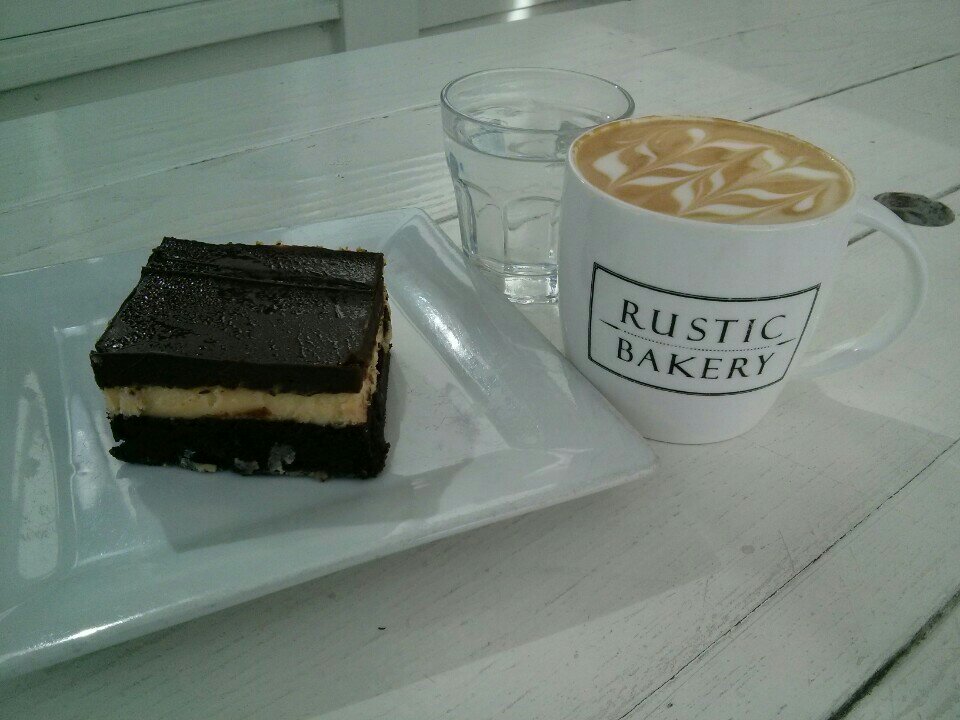
1 pointOK, so its not Florida, but a decadent (cheesecake) chocolate brownie compensates, somewhat.
 1 point
 -
1 point