Leaderboard
-
n_maher
Administrators3Points27513Posts -
Iron_Dreamer
High Rollers1Points2502Posts -
Voltron
High Rollers1Points34606Posts -
Absorbine_Sr
High Rollers1Points8097Posts




Popular Content
Showing content with the highest reputation on 10/17/12 in Posts
-
Thanks everyone, there should be Pliny on tap for later1 point
-
1 point
-
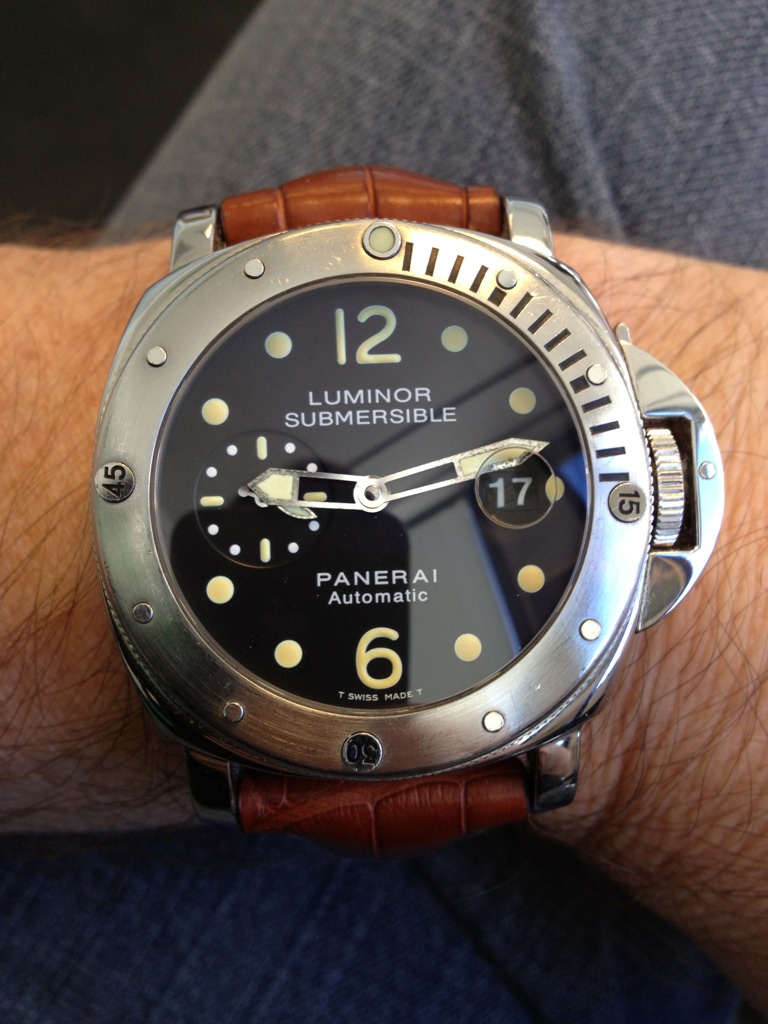
1 pointJeff made me a very happy man by selling me his beloved Panerai Luminor that I have lusted after for a long time. Thanks Jeff!
 1 point
 -
1 pointHoly crap, Jacob....is the fingertip bad? Obviously a lot of bleeding but what about permanent damage? Hope it and tooth all are OK, and be well! Nate, I felt the quake too. I was actually sitting on the toilet! Even though I figured it was a small earthquake, I jokingly thought to myself, "What the hell did I EAT today?!!"1 point
-
^^ Will queue up. Seems like I need to actively cyberstalk you, your tastes seem to parallel mine. Me: Aeon Zen, The Face of the Unknown -- proggy prog.1 point
-
1 point