


dsavitsk
High Rollers
-
Joined
Everything posted by dsavitsk
-
This won't mean much to anyone here, but Elizabet Garrett died at age 52. She was my law school professor for Civ Pro and Legislation, and when the law school had a dean scandal, she was the obvious choice to be the replacement. Instead she was snubbed and went to USC. She recently became the president of Cornell. http://cornellsun.com/2016/03/07/cornells-president-elizabeth-garrett-dies-at-age-52-less-than-one-year-after-assuming-office/
-
That's the best explanation I can come up with.
-
I received an email recently from a "vendor" whose products I had purchased from Mouser. They were aware of the item and the quantity. While the from and return to email addresses all appear sort of legit (it is a 3rd party company that manufacturers subcontract to for tech support), it came to an email of mine that while publicly available and tied to my name, has never been used at Mouser. My guess is Mouser sold a bunch of data.
-
-
Tippi Hedren. I have been to the big cat rescue she runs outside LA. She made brownies
-
Is there actual evidence of this?
-
-
-
Happy 30th!
-
-
-
Happy 30th!
-
-
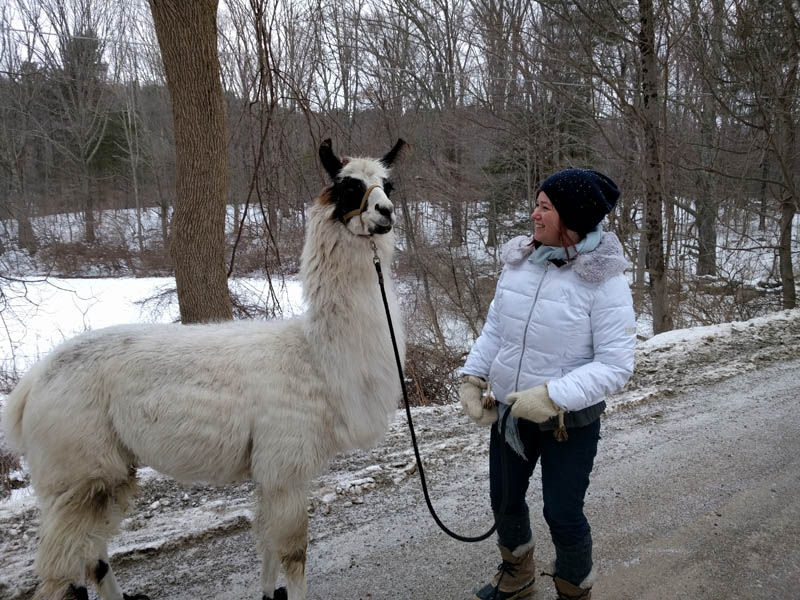
Oddly, while I have not seen AC/DC, I did see Peter Murphy when he was on his above stretching tour. 1990 or so? I didn't know who he was, but a friend had an extra ticket.Went out to western Connecticut to go for a walk in the woods with some llamas.

 Does this sit in a closet, or is it furniture? Cause if it can be ugly then you can get a small server with more power for less money. Any version of *nix will run all the things you want without much trouble. I run a headless TS440 with Vortexbox/Fedora and it does everything you mention.All this talk of investing - I invested in switching from Verizon to Google Fi which his going to save me ~$120/month.Sorry for your loss, Mike and Debbie.For fans of Bob and/or Chris Elliott, I recommend reading this.RIP Bob Elliot.FTMFW!Happy Birthday!Happy Birthday!


Important Information
By using this site, you agree to our Terms of Use.