

Leaderboard
-
n_maher
Administrators26Points27522Posts -
Torpedo
High Rollers14Points10915Posts -
blessingx
High Rollers11Points17841Posts -
MexicanDragon
High Rollers10Points8378Posts




Popular Content
Showing content with the highest reputation on 05/19/22 in Posts
-
5 points
-
5 pointsI would have called you a cunt for your prissy comment and imperious demand, so n_maher and Sherwood have let you off lightly by Head-case standards. So take a breath or take a hike.5 points
-
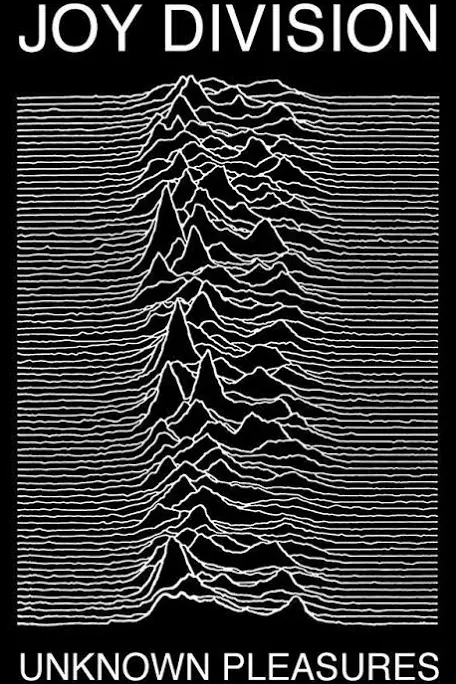
3 points3 points2 pointsI forget who said it, but someone in here mentioned they drive by the SmugMug HQ (the people who own Flickr) and that the bulding is a dump. Went on Google Maps and, uh, can confirm: https://goo.gl/maps/sYgVyvq8SHxQTSFH72 pointsI've listened to several Joy Division things today, including some early material when they went by the name Warsaw. For several years they were my favorite band, and are still up there in the top 5..... Probably my favorite song by them is Decades, the last song on the Closer album. In hindsight, knowing of Ian's suicide, this is such a powerful song to me. There is a keyboard "solo" towards the end that just sounds so frail...and of course the lyrics are very fateful..... EDIT: and the first single that new Order had post-JD was Ceremony/In A Lonely Place. Written while they were still Joy Division....the B-side is also incredibly powerful lyrically and in mood. Again, especially in hindsight....and it was the last demo ever recorded by the group apparently Lyrics: Caressing the marble and stone Love that was special for one The waste in the fever and heat How I wish you were here with me now Body that curls in and dies Hardship that often belies Warm like a dog round your feet How I wish you were here with me now Hangman looks round as he waits Cord stretches tight then it breaks Someday we will die in your dreams How I wish we were here with you now2 points2 points2 pointsDon't I know it. Still, so much death right next door influences every part of life. That is grammatically an imperative, so, an order. I have no fight with you, Helium, I'm just expressing a little solidarity with a fellow forum participant in my neighborhood. That can't possibly be what passes for hate.2 points2 pointsi am really glad i didn't buy ls50 wireless in the past... very good chance i will try these at some point https://us.kef.com/wireless/ls60/ls60-wireless.html2 points2 pointsTake a breath and stop issuing orders when you are not empowered to do so. I see nothing wrong with the posts here.2 points1 point1 pointIt actually looks worse than that now. It seems a very Silicon Valley neighborhood. Dilapidated Smug Mug, RV park for homeless, car repair shops, Mozilla and Atlassian HQs, my 100 unit complex, dead flower shop complex/new 451 housing complex, new low/medium income housing/old Opera browser US HQ, gas station. Its mostly built on early silicon processing companies land so you sign wavers when you buy on the poisoned soil. So you know, basically paradise.1 pointI might wanna transfer some of my uploads while their servers are still running.1 point1 point@skullguise mentioned elsewhere that today is the anniversary of Ian Curtis's death in 1980. RIP to the legend.
 1 point1 point^ Uf, that lady is heavily brainwashed and paid to brainwash. To be honest I don't see India supporting unconditionally Russia. China could if it saw a way to yield USA in the journey. IMHO one of the World's priorities at this point would be stopping Trump to rule the USA for a second time.1 point1 point1 pointFinished Severance over the weekend. Really enjoyed the mind-fuck of it all. I didn't do a lot of theorizing, so a lot of the reveals in the final episodes hit plenty hard, even if there were some bread crumbs leading up. Finished Slow Horses last night. Really enjoyed that too. I forgot how much I like the British 6-episode season. The story flew by, and never felt bloated like some of the "we have to get to 10" Netflix series can. And Gary Oldman is amazing. Looking forward to second seasons of both. Need to get back on The Great.1 point1 point0 pointsYeow. RIP to Vangelis, a man in need of exactly zero introduction. There's no way I could even begin to sum up his career, impact (or, ahem, collection of synthesizers) so I'm just gonna say this: When I did my Saturnine mix 2009, I included his song Ask The Mountain with Stina Nordenstam on vocals:0 points0 points

















Important Information
By using this site, you agree to our Terms of Use.
Account
Navigation
Search
Configure browser push notifications
Chrome (Android)
- Tap the lock icon next to the address bar.
- Tap Permissions → Notifications.
- Adjust your preference.
Chrome (Desktop)
- Click the padlock icon in the address bar.
- Select Site settings.
- Find Notifications and adjust your preference.
Safari (iOS 16.4+)
- Ensure the site is installed via Add to Home Screen.
- Open Settings App → Notifications.
- Find your app name and adjust your preference.
Safari (macOS)
- Go to Safari → Preferences.
- Click the Websites tab.
- Select Notifications in the sidebar.
- Find this website and adjust your preference.
Edge (Android)
- Tap the lock icon next to the address bar.
- Tap Permissions.
- Find Notifications and adjust your preference.
Edge (Desktop)
- Click the padlock icon in the address bar.
- Click Permissions for this site.
- Find Notifications and adjust your preference.
Firefox (Android)
- Go to Settings → Site permissions.
- Tap Notifications.
- Find this site in the list and adjust your preference.
Firefox (Desktop)
- Open Firefox Settings.
- Search for Notifications.
- Find this site in the list and adjust your preference.